
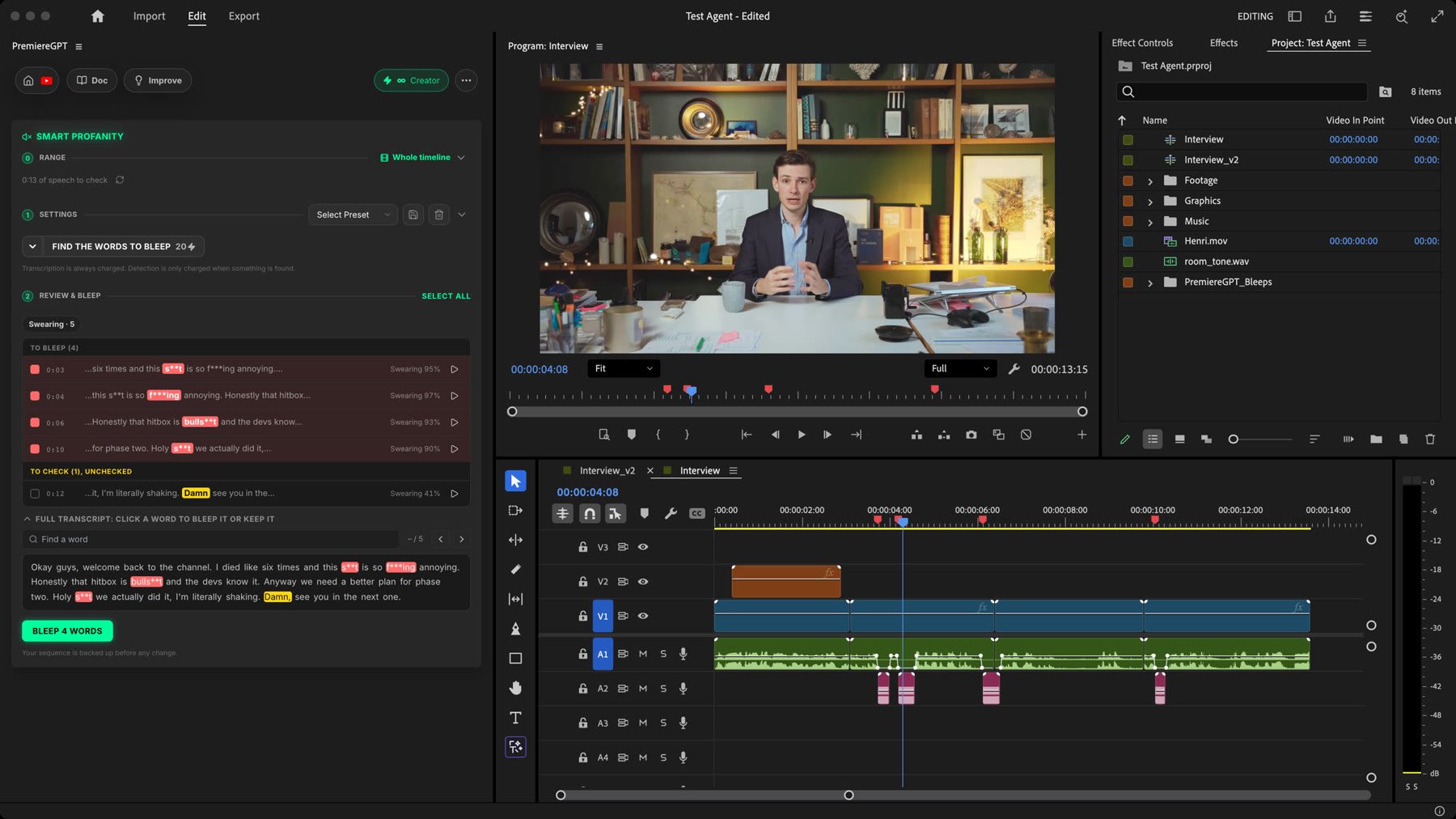
Quick Start
1
Open Smart Profanity
Open the Tools Menu and select Smart Profanity.
2
Choose the range
Select Whole timeline, or In / Out to check only the range between your In and Out points.
3
Set the detection
Choose a level (Light, Standard or Strict) and the categories to bleep.
4
Choose the bleep
Bleep, Mute or Markers only. For a bleep, pick a sound or import your own, and set its volume.
5
Analyze
Click Find the words to bleep. The arrow on its left picks the transcription engine. You watch every sentence being checked and every flagged word turning red, one by one.
6
Review and apply
Uncheck what should stay audible, listen to any word with its bleep, search the transcript for missed words, then click Bleep N words.
Choose the range
Settings
The settings are grouped in three blocks: Detection, Bleep and Advanced settings.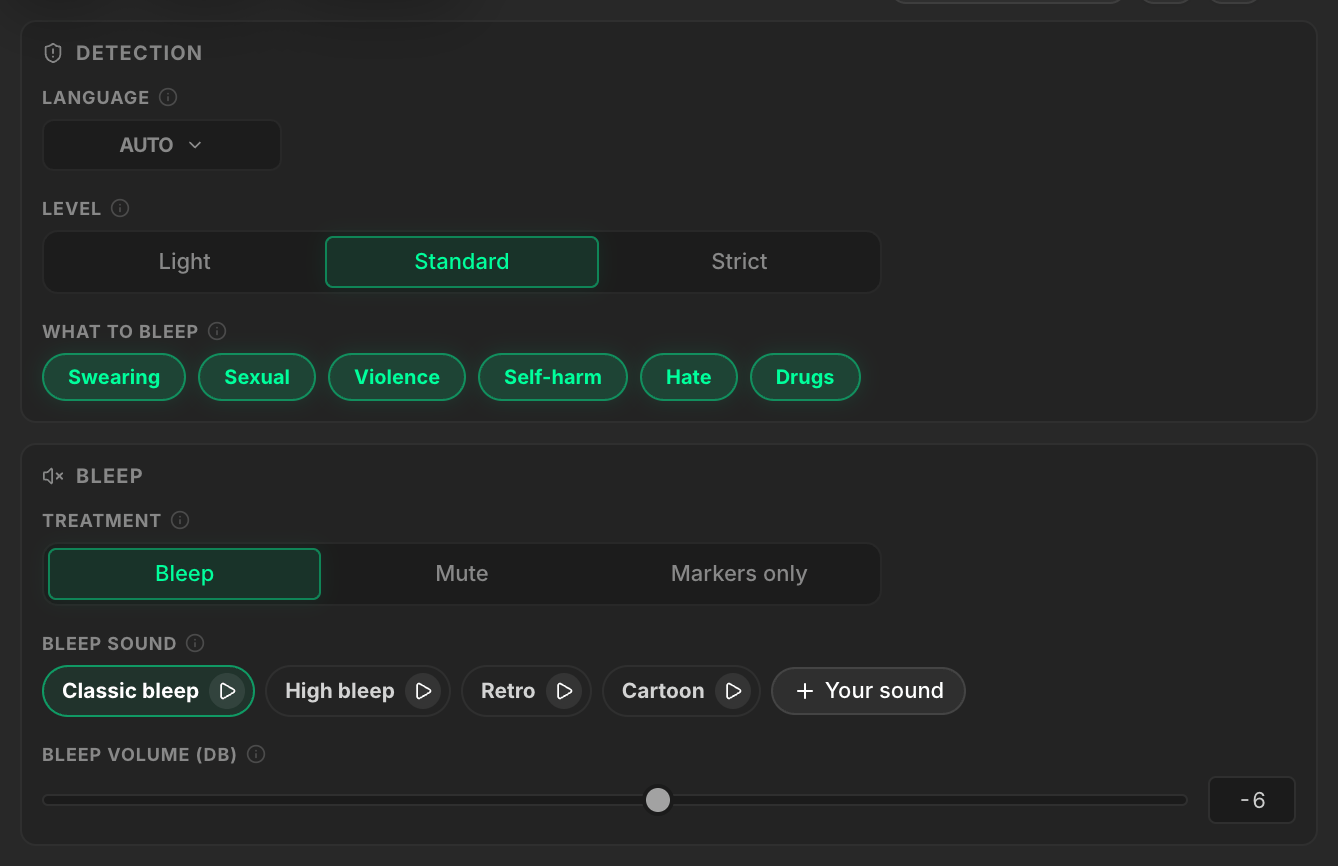
Language
Leave Auto to detect the language. Set it yourself when the video mixes several languages or when detection is wrong. Detection works in every supported language, including Japanese, Korean and Hindi.Level
Words that sit just below the chosen level appear in the review under To check, highlighted in yellow and unchecked. One click bleeps them.
What to bleep
Six categories, all enabled by default:Gameplay is not violence: “I killed the boss” in a gaming video is kept. Idioms and harmless look-alikes are kept too.
Treatment
Bleep sound
Choose Classic bleep, High bleep, Retro or Cartoon, or click Your sound to import any audio file. Every bleep lasts exactly as long as the word, with short fades so it never clicks. An imported sound is looped or trimmed to fit. Bleep volume goes from -20 to +6 dB. What you hear with the play button is exactly what lands on the timeline.Advanced settings
Your last settings are remembered. Save named presets with the preset menu.
Transcription engine
A word has to be heard to be bleeped, so the engine matters. Click the arrow on the left of Find the words to bleep to pick it. PremiereGPT is selected by default, and the button shows the total price of the run.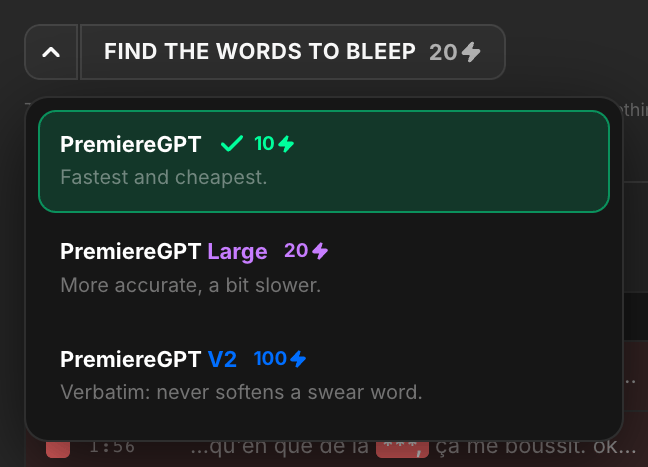
Every transcription made by Smart Profanity is added to the Recent transcriptions of Smart Subtitles, so you can caption the same sequence without transcribing it again.
Watch the analysis
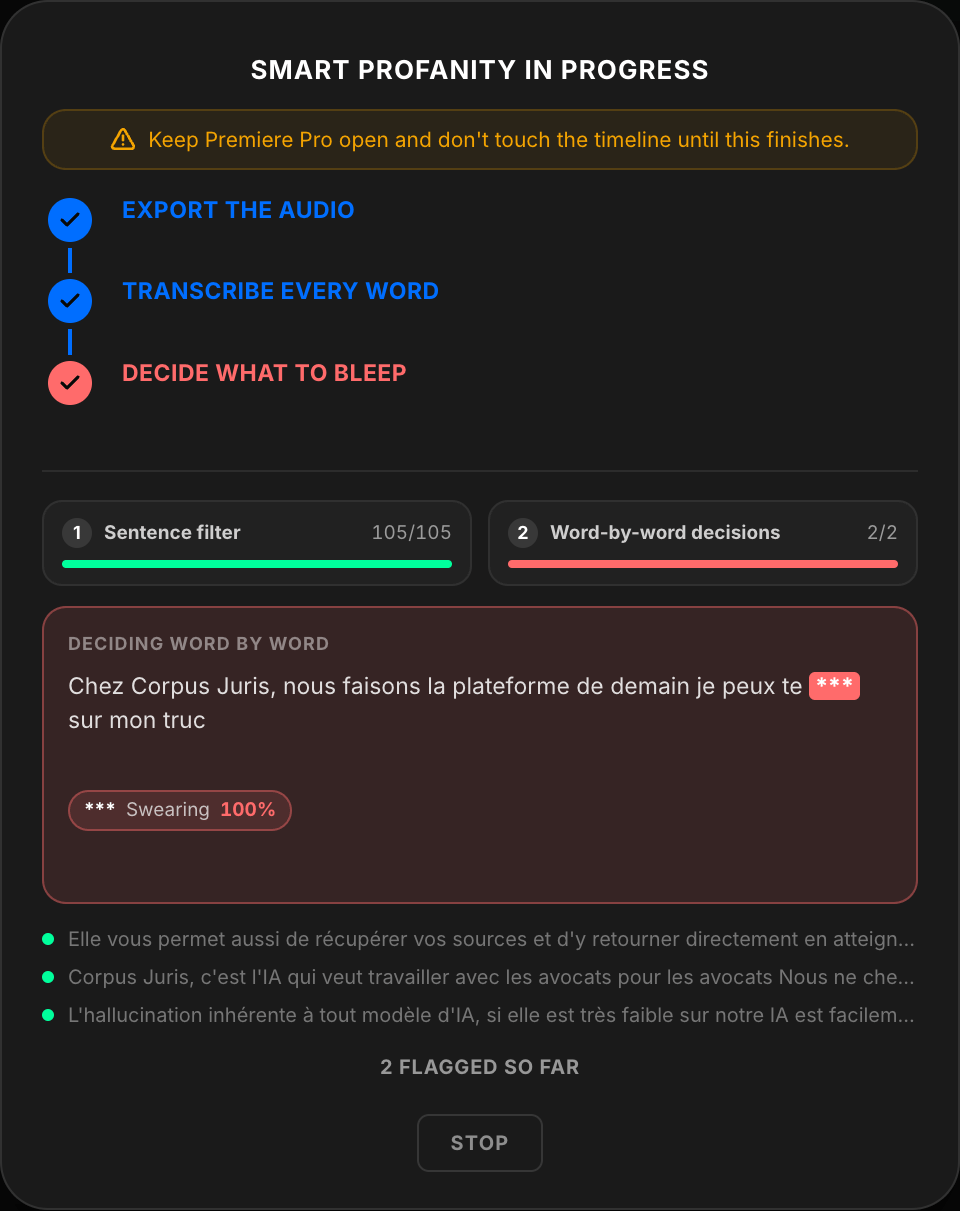
While Smart Profanity works, the progress window shows the algorithm live:- Sentence filter: each sentence gets a probability of containing a word to bleep. Most sentences are cleared at once.
- Word-by-word decisions: the remaining sentences are read word by word. Each word to bleep turns red with its category and probability, one after the other. Words to check turn yellow.
Review
After the analysis, every occurrence appears with its timecode, the word in its sentence, its category and its probability.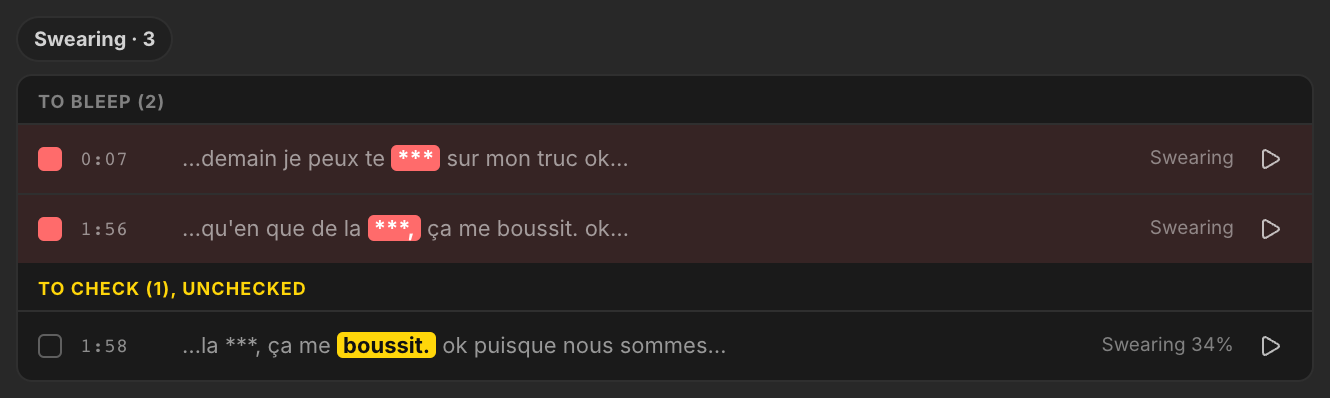
- Click a row to check or uncheck it. Click a category pill to switch the whole category.
- Click the timecode to move the playhead there.
- Click ▶ to listen to the passage with the bleep, before anything is applied.
- Under a selected row, Always bleep this word and Never bleep this word fill your lists and update every occurrence of the word.
Full transcript
Open Full transcript to bleep any word yourself, or to unbleep one. Words to bleep are red, words to check are yellow.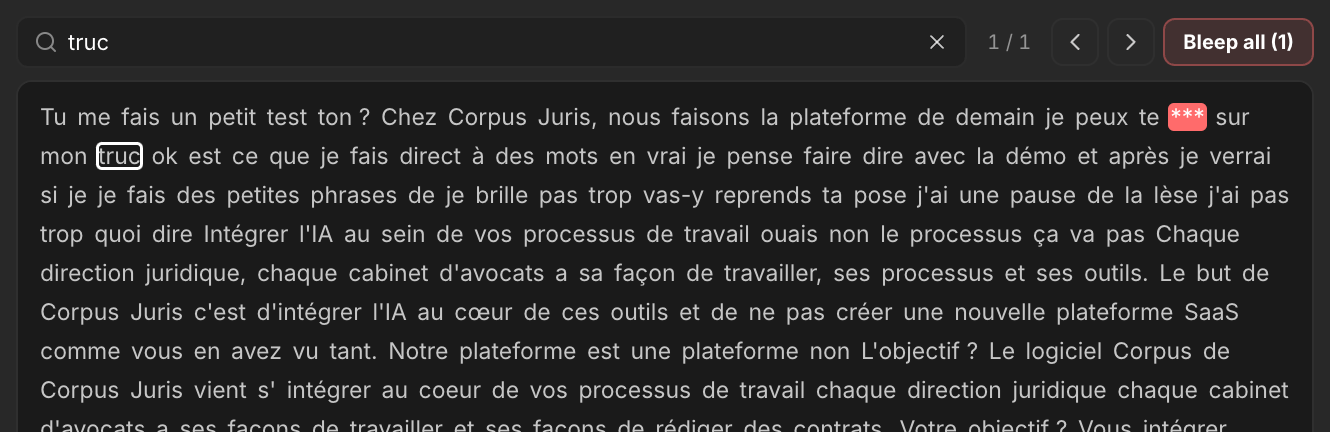
- Find a word: type a word to highlight every match. Enter goes to the next match, Shift+Enter to the previous one.
- ‹ › move from match to match. With an empty search, they jump from flagged word to flagged word.
- Bleep all (N) bleeps every match at once, Keep all (N) undoes it.
- Click in the transcript, then use ← → to move the outlined word and Enter to bleep or keep it.
- Shift-click selects several words of the same sentence.
Apply
When you click Bleep N words:- Your sequence is backed up.
- The voice is muted on the voice tracks, word by word, with short fades. In Premiere Pro this is done with volume keyframes you can adjust afterwards.
- Each bleep is created at the exact length of its word and placed on a free audio track, in the PremiereGPT_Bleeps bin.
- Markers are added if the option is on.
In DaVinci Resolve, the voice is cut on the frame and the bleeped clips are re-placed as audio only on the same track. Their own clip gain and Fairlight effects are reset on those clips. The picture is never touched.